How to create a pixel in facebook by 5 steps
In the dynamic world of digital advertising, Facebook Pixel remains one of the most essential tools for data-driven marketers. Whether you’re running ads for an e-commerce store, a brand page, or a local business, understanding how to create a pixel in Facebook can significantly improve your campaign performance.
A Facebook Pixel allows you to track user actions, retarget visitors, and measure conversions across your website. Think of it as the brain behind your Facebook advertising strategy—it learns from your audience and helps you make smarter marketing decisions.
Before diving into the five-step process, you can also explore a comprehensive setup guide that provides step-by-step visuals and best practices for installing your Pixel correctly.


How to Create a Pixel in Facebook in 5 Steps”
Step 1 – Understanding What a Facebook Pixel Is and Why It Matters
A Facebook Pixel is a small snippet of JavaScript code that you place on your website. This code collects data that helps you track conversions from Facebook ads, optimize ads, build targeted audiences, and remarket to users who have taken some action on your website.
The value of knowing how to create a pixel in Facebook lies in its power to bridge the gap between ad clicks and actual conversions. It ensures every marketing dollar is spent wisely by tracking real-world outcomes.
For beginners, you can read more about the Facebook Pixel guide—it offers a simple breakdown of how the pixel works and how it fits into Facebook’s advertising ecosystem.
In essence, here’s what the pixel allows you to do:
Track user behavior after clicking your ads.
Measure return on investment (ROI) more accurately.
Optimize campaigns automatically for your desired results.
Retarget visitors who didn’t complete their purchases.
The technology behind Facebook Pixel continues to evolve. In 2025, integration with Meta’s Conversions API has made tracking even more reliable and privacy-friendly, aligning with new data regulations like GDPR and CCPA.
So, before you proceed with the setup, ensure you understand these fundamentals—because every successful campaign begins with a well-configured Pixel.
Step 2 – Creating a Facebook Pixel in Five Simple Steps
Here’s where the action begins! Let’s walk through the exact five steps to create your Pixel and connect it to your website:
Access Meta Events Manager:
Log into your Meta Business Suite, then go to “Events Manager.” Click “Connect Data Sources” → “Web” → “Facebook Pixel.”Name Your Pixel:
Choose a name that clearly identifies the business or site (e.g., “MyStore Conversion Pixel”). Avoid using personal or vague names.Enter Your Website URL:
This helps Facebook recommend integrations automatically based on your site platform.Install the Pixel Code:
You can install it manually by copying the base code into the <head> section of every page on your website, or by using integrations such as WordPress, Shopify, or Google Tag Manager.Verify Pixel Functionality:
Use the Meta Pixel Helper Chrome extension to ensure your pixel is firing correctly. It should display a green checkmark once active.
When you learn how to create a pixel in Facebook correctly, it ensures accurate data tracking—helping you make informed decisions on where to invest your ad budget.
For a deeper technical look at how pixels work on live websites, visit this guide on how to use a Facebook Pixel effectively for practical use cases and optimization advice.
Step 3 – Integrating Facebook Pixel with Your Website
Once your pixel is created, integration is the next critical step. Depending on your website’s platform, integration methods vary slightly.
For WordPress Users:
Install a plugin like “PixelYourSite” or “Insert Headers and Footers.” Paste your pixel ID and save changes.For Shopify:
Navigate to “Online Store” → “Preferences” → “Facebook Pixel” and add your Pixel ID.For Custom Sites:
Manually insert the base code into the <head> section before the closing </head> tag on every page.
Always verify that your pixel is working using Meta’s Event Manager dashboard. You can test events like ViewContent, AddToCart, and Purchase to confirm data is being sent correctly.
Combine your Facebook Pixel with the Conversions API for more accurate tracking, especially after iOS 14 privacy updates. It ensures data is still collected even when browser tracking is limited.
Step 4 – Tracking Events and Understanding Pixel Analytics
Once your Facebook Pixel is fully integrated, it’s time to dive into event tracking—the most powerful aspect of using this tool effectively.
An “event” refers to a specific user action on your site that Facebook can record and analyze. Examples include:
Page views
Add-to-cart actions
Completed checkouts
Form submissions
Button clicks
By mastering how to create a pixel in Facebook, you unlock the ability to customize and monitor these events to match your business goals.
There are two main types of events:
Standard Events – predefined by Facebook, such as Purchase, Lead, ViewContent, and AddToCart.
Custom Events – user-defined actions unique to your website (for example, tracking video plays or downloads).
After setting up events, open Meta Events Manager to analyze real-time data. You’ll find metrics like:
Event frequency (how often users perform certain actions)
Conversion rate (how many users complete desired goals)
Attribution data (which ad or audience led to the result)
Proper event tracking allows you to improve ad relevance, reduce wasted spending, and optimize campaigns automatically through Facebook’s learning algorithm.
For marketers looking to understand advanced event tracking options, here’s a helpful breakdown of pixel usage that explains how to configure and test conversion events effectively.
Step 5 – Optimizing Facebook Ads Using Pixel Data
Now that your pixel is tracking essential actions, the next stage is optimization. This is where you turn data into decisions.
When you learn how to create a pixel in Facebook, you gain insights that help you refine every aspect of your campaigns—targeting, bidding, and creative strategy.
Here’s how to use Pixel data effectively:
1. Retarget Website Visitors
Use the pixel to create Custom Audiences based on users who have visited your site or specific product pages but didn’t convert. You can tailor ads specifically to bring them back.
2. Create Lookalike Audiences
Facebook can analyze your top-performing visitors and automatically generate new audiences with similar interests, demographics, and behaviors. This is a major growth tool for scaling your ad reach.
3. Optimize for Conversions
Instead of optimizing for clicks, you can set your campaign’s objective to “Conversions.” Facebook then delivers your ads to people most likely to take desired actions, such as making a purchase.
4. A/B Test Creative Elements
Your pixel data can reveal which ad images, headlines, and CTAs perform best. Use this insight to refine your future campaigns.
For more advanced advertisers, combining pixel data with Facebook Analytics dashboards provides deeper insights into cross-platform performance and multi-touch attribution.
To improve long-term campaign results, you can explore a guide on Facebook Pixel basics for beginners—a resource that simplifies optimization strategies and practical case studies.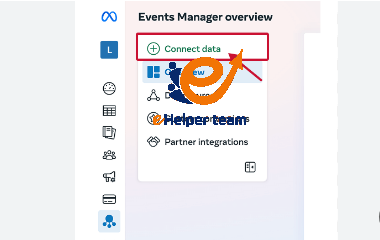
Troubleshooting Common Facebook Pixel Issues
Even experienced marketers encounter setup or data errors when dealing with Facebook Pixels. Let’s review common issues and how to fix them efficiently:
1. Pixel Not Firing
If your pixel doesn’t register events, use Meta Pixel Helper or Event Testing Tool to identify missing code or script conflicts.
2. Duplicate Events
Avoid installing multiple pixels on one page. Duplicates can lead to inflated data and inaccurate conversion tracking.
3. Mismatched Domain Verification
After iOS 14.5 updates, Facebook requires verifying your domain. This ensures that conversion events are accurately attributed to your business.
4. Missing or Delayed Data
If events don’t show immediately, give them a few hours. However, consistent delays may indicate tracking interference from browser privacy settings—use Meta’s Conversions API for reliability.
By ensuring that your Facebook Pixel operates smoothly, your campaigns stay precise and profitable. When you truly know how to create a pixel in Facebook, even troubleshooting becomes part of your optimization strategy.
Advanced Tips – Combining Pixel with Conversions API
With growing privacy changes in the digital space, the Conversions API (CAPI) has become essential. While the Pixel relies on browser data, CAPI connects directly from your server to Meta’s servers—providing a more reliable, privacy-safe way to track conversions.
Here’s how to maximize efficiency:
Use both Pixel and CAPI together for redundancy.
Validate events through the Event Manager dashboard.
Prioritize aggregated event measurement to comply with data regulations.
This hybrid setup ensures you retain accurate performance insights, even when browser tracking is limited. It’s one of the most effective ways to future-proof your ad strategy in 2025 and beyond.
Best Practices for Managing Facebook Pixel in 2025
To wrap up, here are some key practices every marketer should adopt when managing Facebook Pixel:
Audit pixel data monthly to ensure accuracy.
Align events with business goals (don’t track everything, track what matters).
Use standardized naming conventions for easier analysis.
Keep your privacy policies updated to reflect data collection.
Integrate pixel insights into your overall digital marketing strategy.
For a refresher on foundational setup steps, refer to this Facebook Pixel creation tutorial, which walks through installation and troubleshooting in detail.
Frequently Asked Questions (FAQs)
1. What is a Facebook Pixel?
how to create a pixel in Facebook, is a small piece of tracking code that monitors user actions on your website to help optimize ads and conversions.
2. Why should I learn how to create a pixel in Facebook?
Because it lets you measure ad effectiveness, retarget potential customers, and improve your ROI using accurate data insights.
3. Is Facebook Pixel free to use?
Yes. Creating and using a pixel is completely free for any Facebook Business account.
4. How many pixels can I create per business account?
You can create up to 100 pixels per Business Manager account, depending on your ad structure and website portfolio.
5. Does Facebook Pixel work after iOS 14 updates?
Yes, but for better accuracy, combine it with the Conversions API to bypass browser tracking limitations.
6. Can I install Facebook Pixel on WordPress or Shopify?
Absolutely! Most major CMS platforms have direct integrations for easy pixel setup.
7. How long does it take to activate after installation?
Typically, within minutes, though event data might take a few hours to populate.
8. What’s the difference between Pixel and Conversions API?
Pixel collects browser-based data, while CAPI sends data directly from your server—making it more accurate and privacy-friendly.
9. Can I test whether my Facebook Pixel is working?
Yes, use the Meta Pixel Helper Chrome extension to verify active events in real time.
10. How often should I check my Pixel performance?
Review your event data weekly to ensure everything tracks correctly and optimize your campaigns accordingly.
Conclusion
Learning how to create a pixel in Facebook isn’t just a technical process—it’s the foundation of successful digital advertising in 2025. From tracking conversions to building smarter audiences and optimizing your ad spend, the Facebook Pixel is your secret weapon for growth.
How to create a pixel in Facebook. By following these five steps, ensuring correct setup, and leveraging data insights effectively, you’ll be able to turn raw metrics into meaningful marketing results. Keep testing, keep optimizing, and let your Pixel drive smarter business decisions every day.


